

Installation Steps
1
Access the Installation Page
You can reach the installation page through:
- Official Chamelio Installation Page
- In app.chamelio.ai, click Help at the bottom left, then Install Word Add-in
2
Click Open in Word
On the installation page, click the blue “Open in Word” button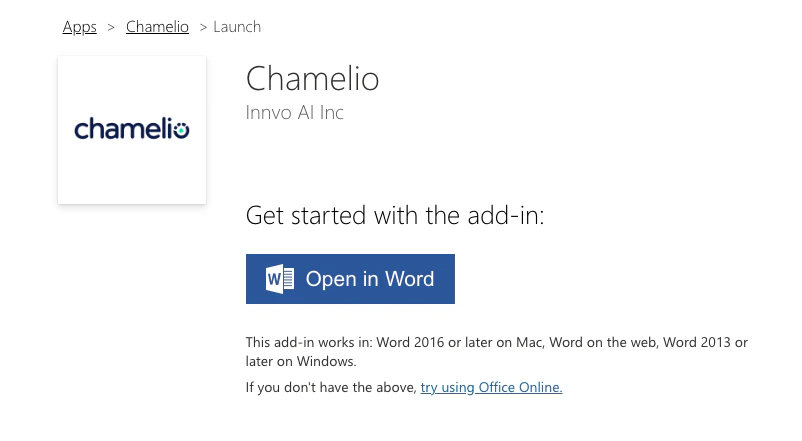
3
Open Microsoft Word
When prompted, click “Open Microsoft Word” to launch the application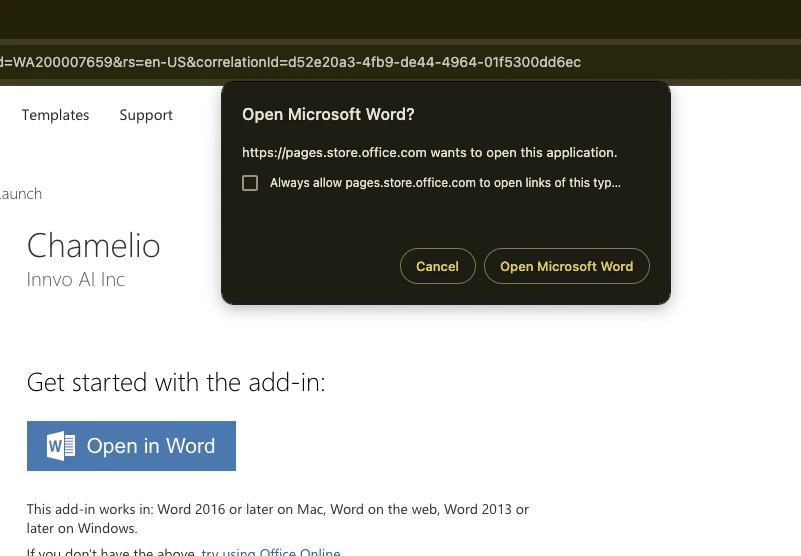
4
Complete Installation
In Microsoft Word: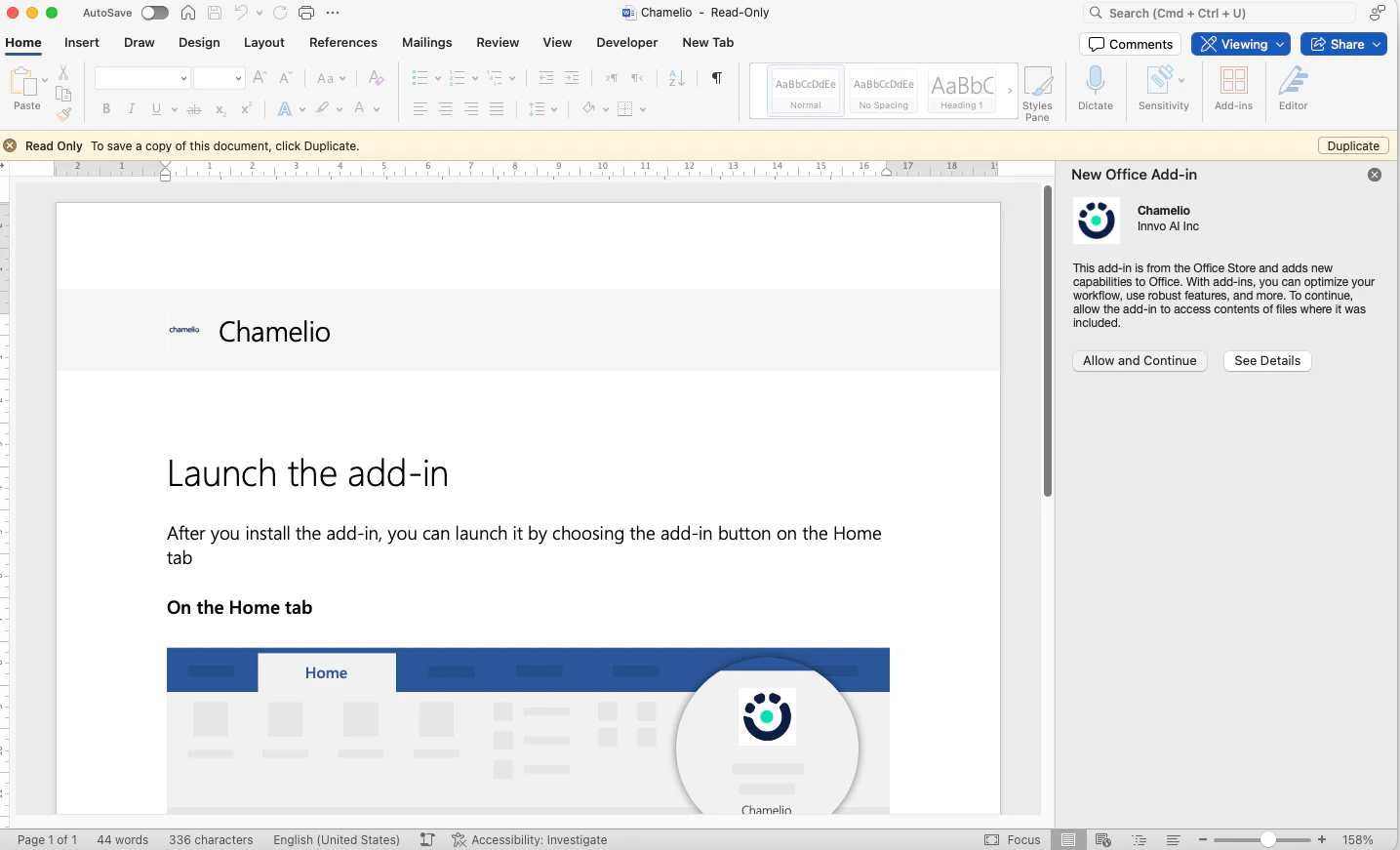
- Look for the right-side panel
- Click “Allow and Continue” when prompted
Troubleshooting Common Issues
Organization Restrictions
Solutions:- Contact your IT administrator - Forward them the installation instructions
- Request add-in approval - Ask them to allow Chamelio as an approved add-in
- Follow the video below - IT administrators can deploy Chamelio org-wide from the Microsoft 365 admin center
Microsoft Account Issues
Make sure you’re signed into the correct Microsoft account that has access to Word and matches your organization’s policies.
Installation Not Appearing
If the add-in doesn’t appear after installation:- Restart Microsoft Word completely
- Check the Home ribbon for the Chamelio button, at the right end
- Email support@chamelio.ai if it still doesn’t appear
Verifying Installation
After successful installation, you should see:- A Chamelio button on the Home tab of the Word ribbon
- The Chamelio panel opening on the right side of the document when you click it
What’s Next?
Document Review
Learn how to review documents using the Chamelio Word Add-in
Word Add-in
Explore what the Word Add-in can do
Need Help?
Word Add-in troubleshooting
Fix install and loading problems
- Email: support@chamelio.ai
- Include your Microsoft Word version and any error messages