Set up Directory Sync from Google Workspace to Chamelio so new employees get access automatically, using read-only access to your users and groups.
With Google Workspace, Chamelio provisions users through Directory Sync, the Google Workspace version of SCIM. Chamelio reads your users, and optionally your groups, from Google Workspace with read-only access, so new employees can sign in to Chamelio without a manual invite.
Directory Sync replaces the SCIM endpoint URL and token used with Okta and Entra ID. Instead, a Google Workspace admin approves read-only access to your directory through a consent link from Chamelio.
Prerequisites
A Google Workspace admin who can approve access to your organization’s directory.
A Google Cloud admin who can create and edit OAuth consent screens and OAuth 2.0 client IDs.
Email support@chamelio.ai and ask for Google Workspace Directory Sync. The Chamelio team sets up the connection and sends you a consent link. If you prefer, the team can go through the steps with your Google Workspace admin on a short call.
2
Approve access in Google Workspace
Your Google Workspace admin opens the consent link and approves read-only access to your directory:
https://www.googleapis.com/auth/admin.directory.user.readonly to read users
https://www.googleapis.com/auth/admin.directory.group.readonly to read groups and their members
Then the admin allows these scopes for the Chamelio app in the Google Admin console:
Go to Security > API Controls > App Access Control, or open App Access Control directly.
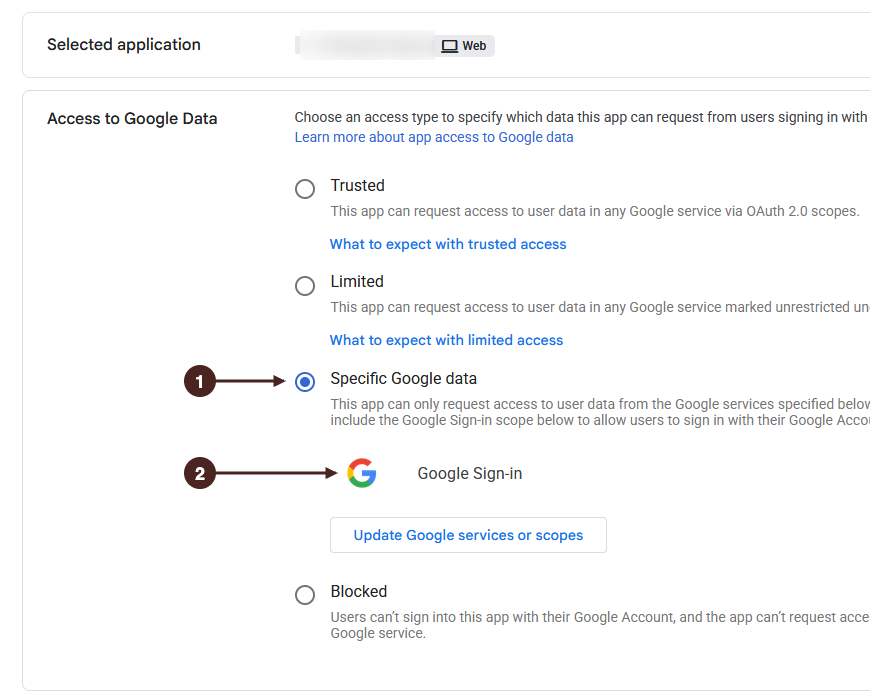
Select the Chamelio app. Under Access to Google Data, choose Specific Google data (1). Keep Google Sign-in (2) so your users can still sign in with their Google account.
Choose Specific Google data and keep Google Sign-in
Click Update Google services or scopes, then Add more OAuth scopes, and add the two read-only scopes above.
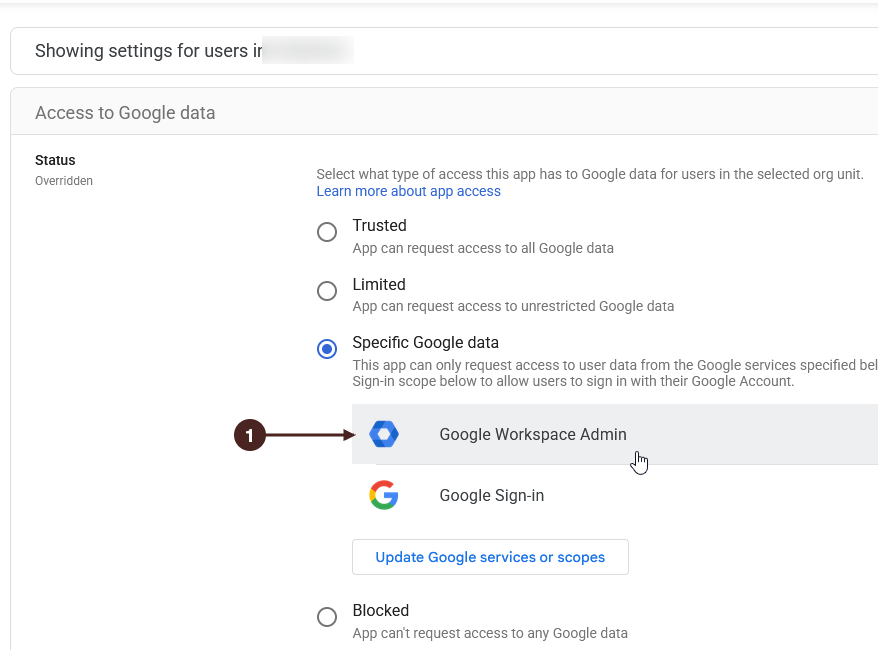
Save. The app now lists Google Workspace Admin (1) above Google Sign-in.
After saving, the app lists Google Workspace Admin and Google Sign-in
3
Choose what to sync
Tell the Chamelio team what to sync:
Users only, or users and groups
For groups: all groups, or only the groups you choose
4
Check the first sync
Directory Sync runs every 30 minutes. After the first sync, ask a new employee to sign in to Chamelio and confirm they get in.
Day-to-day use
If you want to…
Do this
Give a new employee access
Add them in Google Workspace. They can sign in after the next sync, within 30 minutes.
Give every Google group you sync a unique name. If two groups have the same name, even with different capitalization, the sync fails.
A new employee can't sign in yet
Directory Sync runs every 30 minutes, so wait up to 30 minutes after adding them in Google Workspace. If they still can’t sign in, email support@chamelio.ai with their email address.
For sign-in options and other identity providers, see Set up SSO.
Was this page helpful?
Assistant
Responses are generated using AI and may contain mistakes.