> ## Documentation Index
> Fetch the complete documentation index at: https://docs.chamelio.ai/llms.txt
> Use this file to discover all available pages before exploring further.
# How to Install the Chamelio Word Add-in
> Step-by-step guide to installing the Chamelio add-in for Microsoft Word
# How to Install the Chamelio Word Add-in
The Chamelio Word Add-in enables you to use Chamelio Negotiate directly within Microsoft Word for contract review and redlining.
## Prerequisites
Before installing, ensure:
* You are logged into your Microsoft account
* Your organization allows Word add-in installations
* You have an active Chamelio account
## Installation Steps
You can reach the installation page through:
* [Official Chamelio Installation Page](https://chamelio.ai/install)
* The "Install Word Add-in" link in the bottom left corner of [app.chamelio.ai](https://app.chamelio.ai)
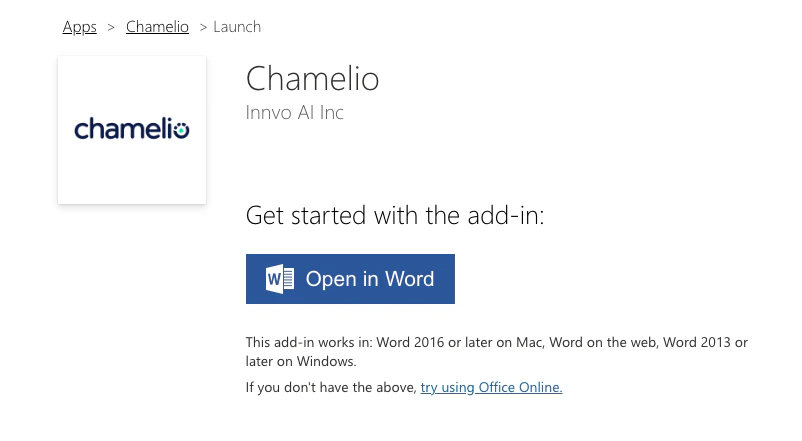
On the installation page, click the blue **"Open in Word"** button
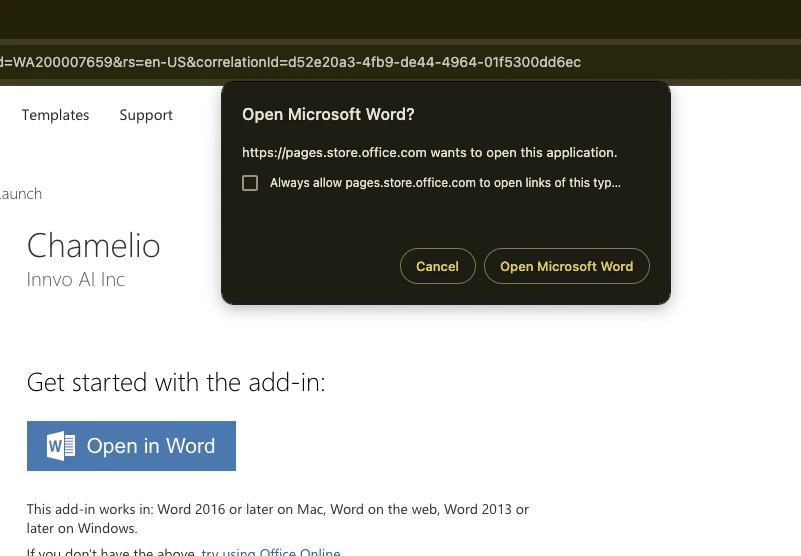
 When prompted, click **"Open Microsoft Word"** to launch the application
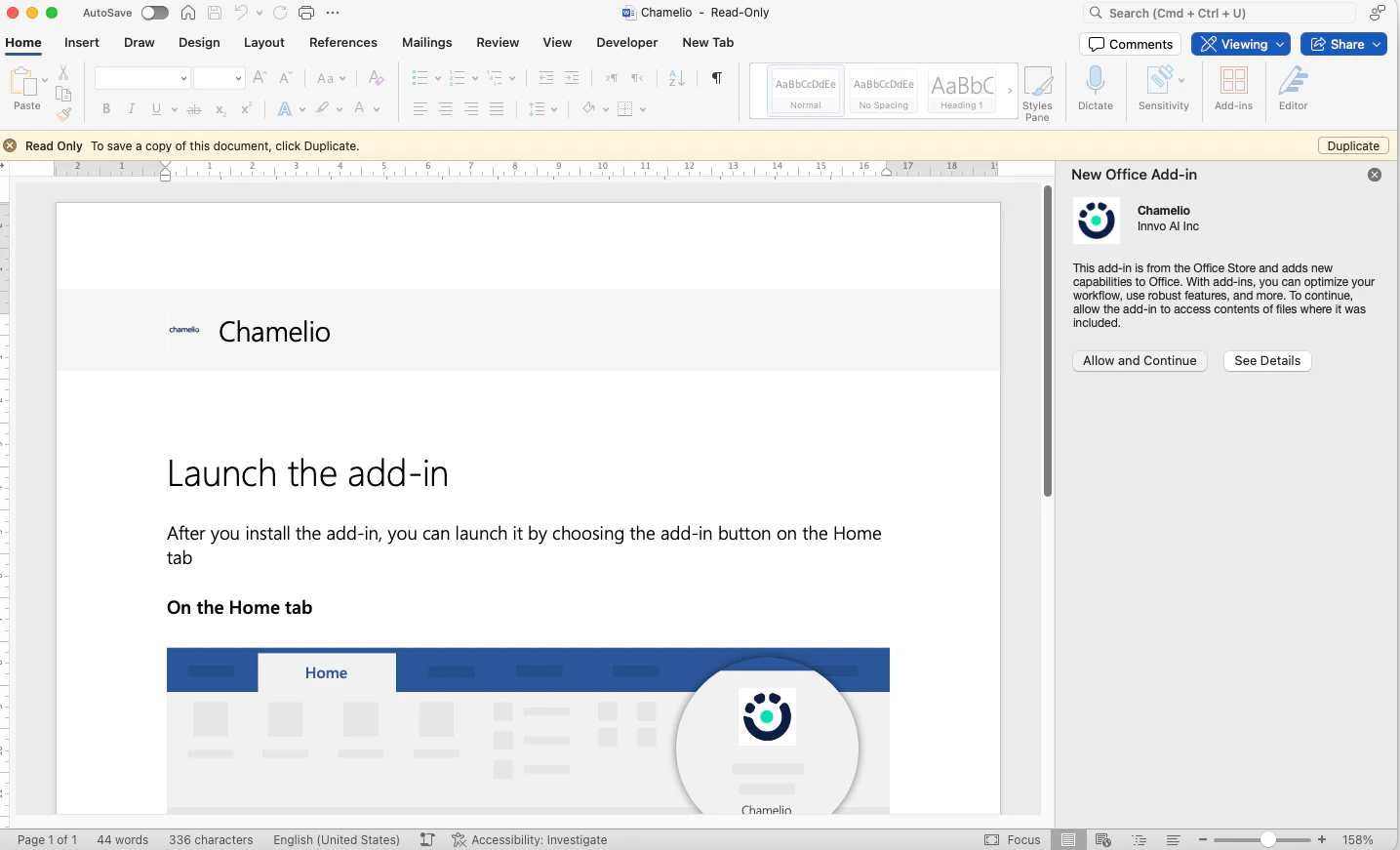
 In Microsoft Word:
* Look for the right-side panel
* Click **"Allow and Continue"** when prompted
In Microsoft Word:
* Look for the right-side panel
* Click **"Allow and Continue"** when prompted
 ## Troubleshooting Common Issues
### Organization Restrictions
If you receive an error about organization limitations preventing installation, your IT administrator may need to remove restrictions on Word add-in installations.
**Solutions:**
1. **Contact your IT administrator** - Forward them the installation instructions
2. **Request add-in approval** - Ask them to allow Chamelio as an approved add-in
3. **Follow video instructions** - Available on the installation page for IT administrators
### Microsoft Account Issues
Make sure you're signed into the correct Microsoft account that has access to Word and matches your organization's policies.
### Installation Not Appearing
If the add-in doesn't appear after installation:
1. **Restart Microsoft Word** completely
2. **Check the Home ribbon** for the Chamelio section
3. **Look in Insert > My Add-ins** to manually enable it
## Verifying Installation
After successful installation, you should see:
* **Chamelio section** in the Word ribbon
* **Right-side panel** available for Chamelio features
* **Access to Negotiate features** when reviewing documents
## What's Next?
Learn how to review documents using the Chamelio Word Add-in
Explore the full capabilities of Chamelio Negotiate
## Need Help?
Find solutions to installation and setup issues
For additional support:
* Email: [support@chamelio.ai](mailto:support@chamelio.ai)
* Include your Microsoft Word version and any error messages
## Troubleshooting Common Issues
### Organization Restrictions
If you receive an error about organization limitations preventing installation, your IT administrator may need to remove restrictions on Word add-in installations.
**Solutions:**
1. **Contact your IT administrator** - Forward them the installation instructions
2. **Request add-in approval** - Ask them to allow Chamelio as an approved add-in
3. **Follow video instructions** - Available on the installation page for IT administrators
### Microsoft Account Issues
Make sure you're signed into the correct Microsoft account that has access to Word and matches your organization's policies.
### Installation Not Appearing
If the add-in doesn't appear after installation:
1. **Restart Microsoft Word** completely
2. **Check the Home ribbon** for the Chamelio section
3. **Look in Insert > My Add-ins** to manually enable it
## Verifying Installation
After successful installation, you should see:
* **Chamelio section** in the Word ribbon
* **Right-side panel** available for Chamelio features
* **Access to Negotiate features** when reviewing documents
## What's Next?
Learn how to review documents using the Chamelio Word Add-in
Explore the full capabilities of Chamelio Negotiate
## Need Help?
Find solutions to installation and setup issues
For additional support:
* Email: [support@chamelio.ai](mailto:support@chamelio.ai)
* Include your Microsoft Word version and any error messages