> ## Documentation Index
> Fetch the complete documentation index at: https://docs.chamelio.ai/llms.txt
> Use this file to discover all available pages before exploring further.
# Chamelio Word Add-in: AI contract review in Word
> The Chamelio Word Add-in brings Chamelio into Microsoft Word. Review contracts against your playbooks, proofread, and work with the Agent without leaving your document.
It opens as a panel on the right side of Word and works on the document you have open.
## Before you start
* **Install the add-in.** See [Install the Word Add-in](/guides/install-word-add-in).
* **Have Word Add-in access.** Access is set per user. To use the Agent, you also need to be an [Agent User](/guides/user-management#agent-users). If the add-in opens but you can't use it, ask your Chamelio admin or your Chamelio legal engineer.
* **Use a .docx file.** Word add-ins don't work on legacy .doc files. Save the file as .docx first.
## Open the Word Add-in
Open the .docx file you want to work on.
The **Chamelio** button is at the right end of the **Home** ribbon. The panel opens on the right side of the document.
Sign in with your Chamelio account. If your organization uses single sign-on, enter your work email and you're sent to your identity provider.
If you don't see the Chamelio button, see [Word Add-in troubleshooting](/faq/word-add-in-troubleshooting).
## Choose your party
The Word Add-in needs to know which side of the contract you represent. The first time you run a review, proofreading, or an Agent request on a document, the **Select party** menu opens.
* **Pick a party from the list.** Chamelio lists the parties defined in the contract, for example the "Customer" and the "Provider".
* **Define it manually.** If the party you need isn't listed, choose **Define manually**, type the name, and click **Done**.
Your choice appears at the top of the Home screen. Click it to change it at any time.
For a mutual agreement, such as a mutual NDA, either party works. Pick the side whose interests you most want to protect.
## Find your way around the panel
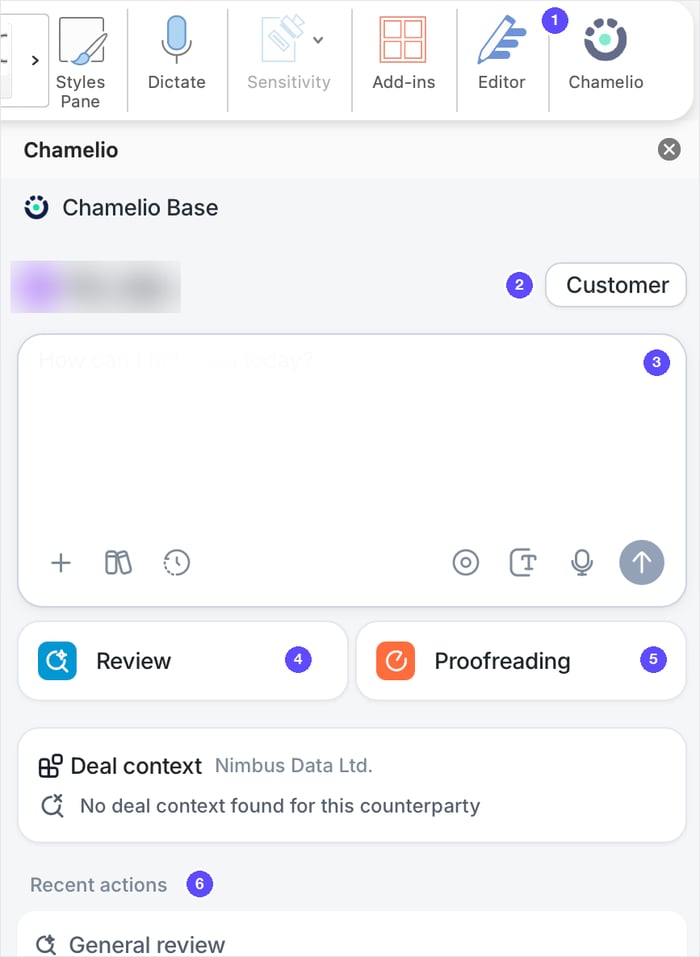 1. **Chamelio button.** On the **Home** tab of the Word ribbon. Click it to open the panel.
2. **Your party.** The side of the contract you represent. Click it to change it. See [Choose your party](#choose-your-party).
3. **Chat box.** Ask the Agent a question, or ask it to draft or redline. See [Word Add-in Agent](/features/word-add-in/agent).
4. **Review.** Review the contract against a playbook, a clause library, or general standards. See [Document Review](/features/word-add-in/document-review).
5. **Proofreading.** Check the contract for drafting errors. See [Proofreading](/features/word-add-in/proofreading).
6. **Recent actions.** Reviews you've run on this document. Click one to go back to its results.
The **Deal context** card, between Review and Recent actions, shows the counterparty Chamelio detected in the document.
### Tabs at the bottom of the panel
* **Home.** The screen above.
* **Agent.** Your conversations about this document. Start a new chat or open your history.
* **Clauses.** Search your clause libraries. Open a clause to copy it or send it to the Agent.
* **Flows.** Link the document to a workflow task in review. Choose the **Task** and what to **Save as**, then click **Link to flow**.
## How changes reach your document
The Word Add-in never edits your document without a click from you. When it does change the document:
| Action | How it lands in the document |
| - | - |
| **Apply** or **Apply all** on a review suggestion | Tracked changes |
| **Fix** or **Fix all** in Proofreading | Tracked changes |
| **Apply** on an Agent edit to existing text | Tracked changes |
| **Insert At Cursor** on new text from the Agent | New text at your cursor. Tracked when Track Changes is on in Word |
| **Insert Comment** or **Insert At Cursor** on a proposed comment | A Word comment |
**Apply**, **Apply all**, and **Fix** add tracked changes even if Track Changes is off in Word. For **Insert At Cursor**, turn on Track Changes first if you want the new text tracked. Accept or reject tracked changes in Word like any others.
For tasks you do with Word's own tools, such as deleting comments or undoing changes, see [Working in Word](/faq/word-add-in-troubleshooting#working-in-word).
## What's next
Review a contract against a playbook, a library, or general standards
Ask questions, draft, redline, and compare documents
Catch drafting errors before you send the document
Fix install and loading problems
1. **Chamelio button.** On the **Home** tab of the Word ribbon. Click it to open the panel.
2. **Your party.** The side of the contract you represent. Click it to change it. See [Choose your party](#choose-your-party).
3. **Chat box.** Ask the Agent a question, or ask it to draft or redline. See [Word Add-in Agent](/features/word-add-in/agent).
4. **Review.** Review the contract against a playbook, a clause library, or general standards. See [Document Review](/features/word-add-in/document-review).
5. **Proofreading.** Check the contract for drafting errors. See [Proofreading](/features/word-add-in/proofreading).
6. **Recent actions.** Reviews you've run on this document. Click one to go back to its results.
The **Deal context** card, between Review and Recent actions, shows the counterparty Chamelio detected in the document.
### Tabs at the bottom of the panel
* **Home.** The screen above.
* **Agent.** Your conversations about this document. Start a new chat or open your history.
* **Clauses.** Search your clause libraries. Open a clause to copy it or send it to the Agent.
* **Flows.** Link the document to a workflow task in review. Choose the **Task** and what to **Save as**, then click **Link to flow**.
## How changes reach your document
The Word Add-in never edits your document without a click from you. When it does change the document:
| Action | How it lands in the document |
| - | - |
| **Apply** or **Apply all** on a review suggestion | Tracked changes |
| **Fix** or **Fix all** in Proofreading | Tracked changes |
| **Apply** on an Agent edit to existing text | Tracked changes |
| **Insert At Cursor** on new text from the Agent | New text at your cursor. Tracked when Track Changes is on in Word |
| **Insert Comment** or **Insert At Cursor** on a proposed comment | A Word comment |
**Apply**, **Apply all**, and **Fix** add tracked changes even if Track Changes is off in Word. For **Insert At Cursor**, turn on Track Changes first if you want the new text tracked. Accept or reject tracked changes in Word like any others.
For tasks you do with Word's own tools, such as deleting comments or undoing changes, see [Working in Word](/faq/word-add-in-troubleshooting#working-in-word).
## What's next
Review a contract against a playbook, a library, or general standards
Ask questions, draft, redline, and compare documents
Catch drafting errors before you send the document
Fix install and loading problems