> ## Documentation Index
> Fetch the complete documentation index at: https://docs.chamelio.ai/llms.txt
> Use this file to discover all available pages before exploring further.
# Review contracts in the Word Add-in
> Run a general, playbook, or clause library review in Word, then apply, refine, or dismiss each suggested redline and add comments, all from the Chamelio panel in Word.
The Word Add-in reviews the open contract and suggests redlines, each with its reasoning. You decide what goes into the document.
## Video walkthrough
## Start a review
If you haven't chosen a party for this document yet, the **Select party** menu opens first. See [Choose your party](/features/word-add-in/introduction#choose-your-party).
The **How should we review it?** screen has a search box and two tabs, **Playbooks** and **Libraries**. Pick one of the three review types below.
A review usually takes one to three minutes.
### Review types
Reviews the contract against general legal standards. No playbook is needed, so use it for third-party paper or contract types you don't have a playbook for.
Click **General review** at the top of either tab, then add an optional instruction. See [General review](/guides/general-review) for the steps and examples of instructions.
Reviews the contract against one of your organization's [playbooks](/features/core/playbooks) and suggests redlines that bring it in line with your positions.
On the **Playbooks** tab, click a playbook. Each card shows the contract type, the playbook name, and when it was created. The optional **Review Instruction** box opens, the same as for a general review.
Compares the contract against one of your clause libraries, built from your templates and past agreements. Use it to check a counterparty's redlines on your own paper.
On the **Libraries** tab, click a library to select it, then click **Start review**. If a library you expect is missing, check with your admin that a clause library was created for that template in [Template Management](/features/core/template-management).
## Read the results
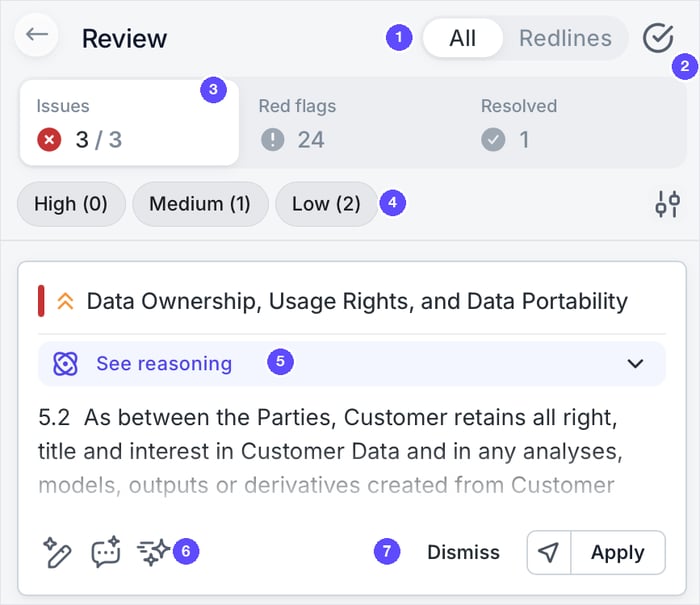 1. **All / Redlines.** **All** shows suggestions for the whole contract. **Redlines** shows only suggestions on clauses that already contain tracked changes. Use it to respond to a counterparty's redline.
2. **Check icon.** Opens **Apply all** and **Mark as completed**. See [Apply all suggestions at once](#apply-all-suggestions-at-once).
3. **Counters.**
* **Issues:** clauses that need a change, shown as open out of total.
* **Red flags:** clauses to look at that have no clear rule in your playbook or library. In a library review, clauses that differ from the library.
* **Resolved:** clauses that already meet your standard, plus suggestions you've applied or dismissed.
4. **Priority.** Click **High**, **Medium**, or **Low** to show only those suggestions. Click it again to show all. The sliders icon on the right sorts suggestions by **Priority** or **Sequential** (document order).
5. **See reasoning.** Why the change is suggested.
6. **Suggestion tools.** Refine the suggestion with AI, or draft a comment. In a library review, the first icon opens the clause variations.
7. **Dismiss, See location, Apply.** Reject the suggestion, find its clause in the document, or accept it.
## Work with a suggestion
| If you want to... | Do this |
| - | - |
| Find the clause in the document | Click **See location** (arrow icon) |
| Accept the change | Click **Apply**. It's inserted as tracked changes |
| Reject the change | Click **Dismiss** |
| Get a different version | Click the sparkles icon and describe what to change in **Ask to refine or modify the text**. See [Fine-tune AI suggestions](/guides/fine-tune-ai-suggestions) |
| Explain the change to the counterparty | Click the comment icon. Edit the drafted comment if you want, then click **Insert Comment** |
| Give feedback on the suggestion | Open **See reasoning** and click **Mark as good suggestion** or **Flag for improvement** |
### Playbook and library extras
* **Fallbacks (playbook review).** See the fallback positions defined in the playbook. If it has none, the button says **No fallbacks available**.
* **View clause variations (library review).** See the approved wording from your library with a match score. Click **Compare** to see the difference from the contract as a full redline.
### Edit a suggestion before you apply it
You can type in the suggestion text to change it. To drop part of a suggestion, select that part, right-click, and choose **Dismiss suggestion**. Then click **Apply** for the rest.
To undo an applied suggestion, see [Undo applied changes](/guides/apply-all-recommendations-word#undo-applied-changes). To get a dismissed suggestion back, ask the Agent for the same change.
## Apply all suggestions at once
To apply every open suggestion in one step, open the check icon menu and choose **Apply all**. See [Apply all suggestions](/guides/apply-all-recommendations-word).
The same menu has **Mark as completed**, for when you've finished with a review.
## Come back to a review
Results are saved with the document. If you leave the review, close the panel, or use the Agent, open **Recent actions** on the Home screen and click the review to pick up where you left off. Applied and dismissed suggestions keep their status.
## Related
Ask follow-up questions and request edits the review didn't suggest
Final check before you send the document
Create and manage the playbooks reviews use
Fix common problems and work with Word's own tools
1. **All / Redlines.** **All** shows suggestions for the whole contract. **Redlines** shows only suggestions on clauses that already contain tracked changes. Use it to respond to a counterparty's redline.
2. **Check icon.** Opens **Apply all** and **Mark as completed**. See [Apply all suggestions at once](#apply-all-suggestions-at-once).
3. **Counters.**
* **Issues:** clauses that need a change, shown as open out of total.
* **Red flags:** clauses to look at that have no clear rule in your playbook or library. In a library review, clauses that differ from the library.
* **Resolved:** clauses that already meet your standard, plus suggestions you've applied or dismissed.
4. **Priority.** Click **High**, **Medium**, or **Low** to show only those suggestions. Click it again to show all. The sliders icon on the right sorts suggestions by **Priority** or **Sequential** (document order).
5. **See reasoning.** Why the change is suggested.
6. **Suggestion tools.** Refine the suggestion with AI, or draft a comment. In a library review, the first icon opens the clause variations.
7. **Dismiss, See location, Apply.** Reject the suggestion, find its clause in the document, or accept it.
## Work with a suggestion
| If you want to... | Do this |
| - | - |
| Find the clause in the document | Click **See location** (arrow icon) |
| Accept the change | Click **Apply**. It's inserted as tracked changes |
| Reject the change | Click **Dismiss** |
| Get a different version | Click the sparkles icon and describe what to change in **Ask to refine or modify the text**. See [Fine-tune AI suggestions](/guides/fine-tune-ai-suggestions) |
| Explain the change to the counterparty | Click the comment icon. Edit the drafted comment if you want, then click **Insert Comment** |
| Give feedback on the suggestion | Open **See reasoning** and click **Mark as good suggestion** or **Flag for improvement** |
### Playbook and library extras
* **Fallbacks (playbook review).** See the fallback positions defined in the playbook. If it has none, the button says **No fallbacks available**.
* **View clause variations (library review).** See the approved wording from your library with a match score. Click **Compare** to see the difference from the contract as a full redline.
### Edit a suggestion before you apply it
You can type in the suggestion text to change it. To drop part of a suggestion, select that part, right-click, and choose **Dismiss suggestion**. Then click **Apply** for the rest.
To undo an applied suggestion, see [Undo applied changes](/guides/apply-all-recommendations-word#undo-applied-changes). To get a dismissed suggestion back, ask the Agent for the same change.
## Apply all suggestions at once
To apply every open suggestion in one step, open the check icon menu and choose **Apply all**. See [Apply all suggestions](/guides/apply-all-recommendations-word).
The same menu has **Mark as completed**, for when you've finished with a review.
## Come back to a review
Results are saved with the document. If you leave the review, close the panel, or use the Agent, open **Recent actions** on the Home screen and click the review to pick up where you left off. Applied and dismissed suggestions keep their status.
## Related
Ask follow-up questions and request edits the review didn't suggest
Final check before you send the document
Create and manage the playbooks reviews use
Fix common problems and work with Word's own tools